

Screenshots show the Singular dashboard as it looked when this guide was written. Singular
moves things around from time to time; the setting names are the reliable part, not the exact
position on screen.Click any screenshot to enlarge it.
Add Almedia as a partner
Go to Singular → Settings → Partner Configuration → Add Partner, then search for Almedia.Add an attribution integration
Paste the Provider ID and API key to add us as a data connector.Your Provider ID and API key come from Almedia. Ask your Almedia contact for them before you
start this step — the form cannot be saved without them.
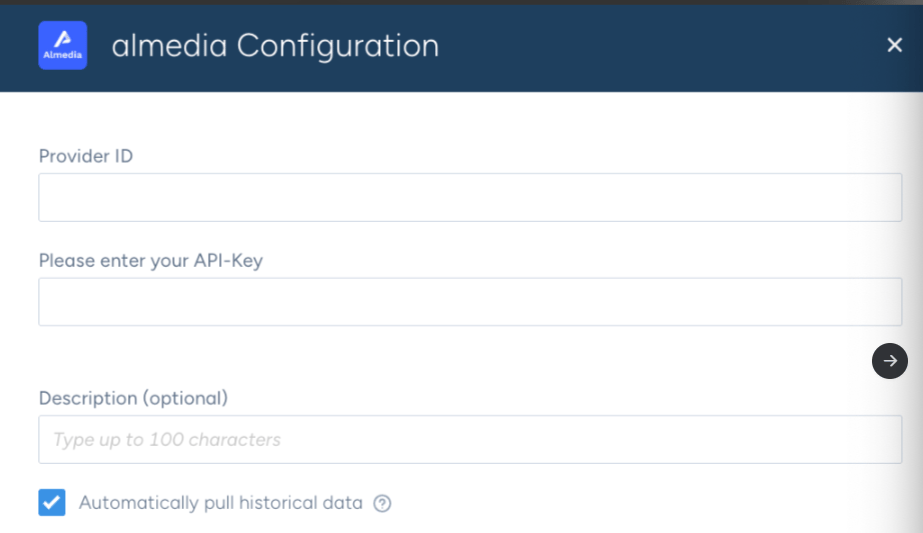
The Almedia configuration dialog in Singular.
Select your apps
Select the app or apps for which the integration is being activated.Complete the postbacks
Complete Attribution Postbacks and In app Events Postback. Please check the “Send All” box for events, to send postbacks for all attributed and unattributed sources.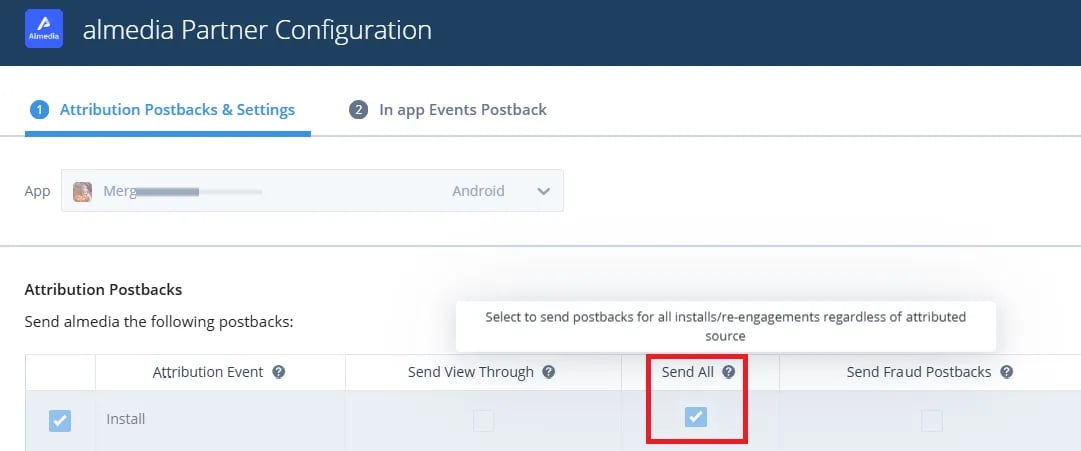
Attribution Postbacks — Send All checked for the Install event.
Enable the events
Enable the following standard events, and any other events that you would like to share with us:Standard events
Singular documentation
Singular’s own documentation, for anything specific to their platform.